top of page

FAQ

Airgle mobile app-2.jpg

1. Download App

  • Download Airgle Mobile App and register an account:

  • Connect the phone to the WIFI network. The WIFI network must be single-band 2.4GHz. 5GHz and dual-band 2.4/5GHz are not supported.

  • Activate the Bluetooth function of the phone to help connect successfully.

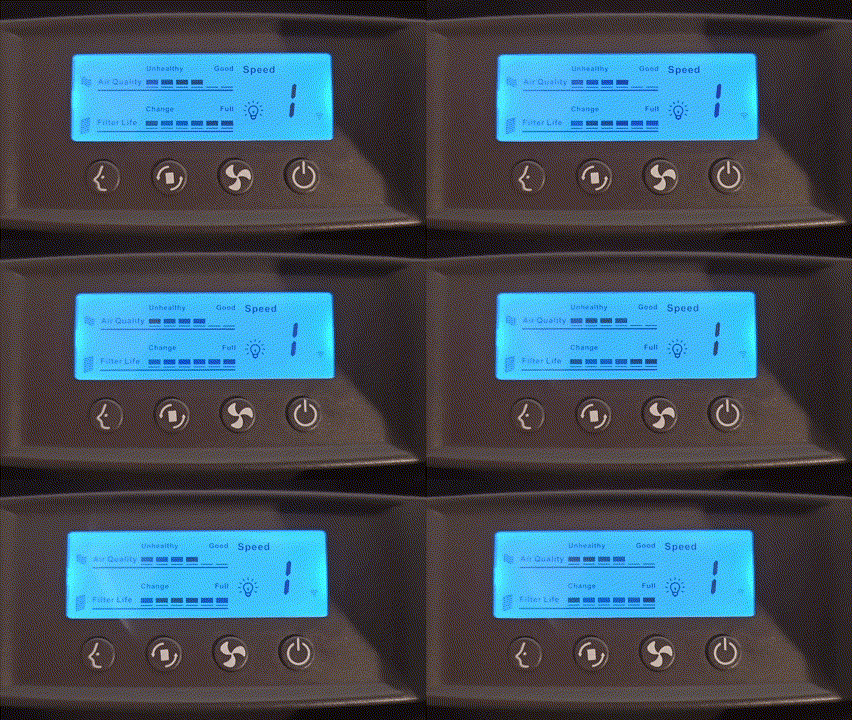
wifi fast flashing.gif

2. WIFI "fast flashing" icon appear

  • Unplug the power cord to completely power off the machine. Plug the power cord after 10 seconds.

  • Turn on the Airgle, press the reset button until WIFI icon appear.

  • If WIFI "fast flashing" icon (as shown above) appear at the LCD screen , you can go to step 4 to connect the device.

wifi slow flashing.gif

3. WIFI "slow flashing" icon appear

  • If the WIFI "slow flashing" icon (as shown above), press the reset button until WIFI "fast flashing" icon appear.

    • WIFI "fast flashing": It is for EZ mode connection. EZ mode is easier to use and quicker during first network pairing.

    • WIFI "slow flashing": It is for AP mode connection. If EZ mode connection fails, try to connect thru AP mode.

  • The WIFI icon will disappear after 3 minutes. As a result, the whole connection process needs to be completed within 3 minutes.

Airgle mobile app-8a_edited.jpg

4. Connection method (1) : Auto scan

  • ​Place the mobile phone near the Airgle.

  • Open Airgle App, log in to your account.

  • ​Press the "+'' sign in the upper right corner
    You can choose "Add Manually'' or "Auto Scan''
    It is recommended to use "Auto Scan" to connect first. If the connection fails, you can choose "Add Manually".

Mode - EZ mode.jpeg

5. Connection method (2) : Add manually (EZ mode)

  • There are "EZ mode" and "AP mode"  two connection methods under "Add manually". It is recommended to use EZ mode first.

  • Make sure WIFI "fast flashing" icon appear.

  • Follow the steps to enter the WIFI name and password (WIFI network must be single-band 2.4GHz, 5GHz and dual-band 2.4/5GHz are not supported)

  • The mobile app will automatically pair with the Airgle (the connection will be completed in 1 - 2 minutes)

Mode - AP mode.jpeg

6. Connection method (3) : Add manually (AP mode)

  • If "EZ mode" fails, try "AP mode" connection.
    Make sure WIFI "slow flashing" icon appear.

  • Follow the steps to enter the WIFI name and password (WIFI network must be single-band 2.4GHz, 5GHz and dual-band 2.4/5GHz are not supported)

  • Connect mobile phone to Airgle, at the phone's WIFI setting, find the hotspot name "SmartLife-XXXX" and connect.

  • The mobile app will automatically pair with the Airgle (the connection will be completed in 1 - 2 minutes)

App connect succeed-1.jpeg

7. Connected successfully

  • When the Airgle is successfully connected, the WIFI icon will stop flashing and change to the shape as shown above.

  • You can change the wind speed, set the daily operating time, activate the child safety lock and other settings at the App. For details, please refer to the user manual.

FAQ

  1. ​How to identify the WIFI network is 2.4GHz or 5GHz?
    You can download this file to learn how to distinguish WIFI networks on PC, iOS phones and Android phones.
     
  2. Can I connect to a mixed dual-band 2.4/5GHz WIFI network?
    Airgle does not support mixed dual-band 2.4/5GHz. WIFI network needs to be set to a single-band 2.4GHz.
     
  3. Can I connect to WIFI 6?
    Yes, WIFI 6 is supported as long as the WIFI network is a single-band 2.4GHz.
     
  4. After the App is successfully connected to the Airgle, does the phone still need to be connected to WIFI (2.4GHz) to control the Airgle?
    After the connected successfully, the mobile phone does not need to connect to the WIFI (2.4GHz). You can use other networks or data networks to control Airgle devices at anywhere.
     
  5. How to reconnect Airgle?
    Unplug the power cord to completely power off the Airgle. Wait for 10 seconds to plug again the power cord. Turn on the Airgle, press the reset button for 5 seconds, the WIFI icon will appear and flash rapidly (flashing 2 times per second), then you can follow the above steps to reconnect the Airgle.
     
  6. The "Add Manually" in the APP has "Wi-Fi Quick Connect (EZ mode)" or "Hot Spot Configuration (AP mode)". What is the difference?
    Compared with AP mode, EZ mode is easier to connect during the first network pairing. However, some mobile phones and devices are not compatible with EZ mode and need to be connected using AP mode.
     
  7. How to share Airgle device to other family members?
    First, one of the mobile apps must successfully connect to the Airgle, and then share it with other family members. The sharing process is as follows:
  • Open the APP and click on "Me" in the main menu
  • Click "Device Location Management"
  • Click "Add Member"
  • Enter "Member Name" and "Account (Mobile Number/Email)"
  • The new members will be notified. They need to click "Accept Invitation" to complete the process
bottom of page